
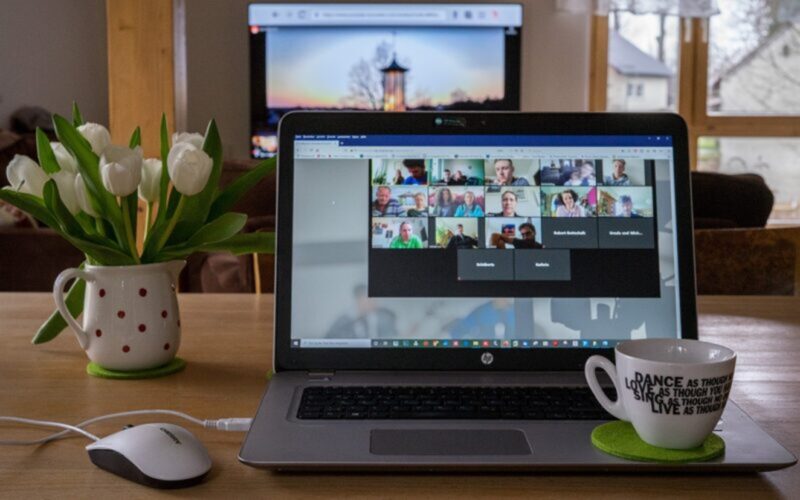
Online meetings have become a regular part of many people’s professional and personal lives, as platforms like Zoom and Google Meet have grown exponentially in recent years. For people who are blind or low vision, they offer a major advantage: There’s no need to arrange transportation to attend your class, meeting or event. But just as it’s important to present yourself professionally in person, it’s equally important to maintain a professional presence virtually. Here are some tips and tricks that may help you out as you navigate the world of online meetings.
When you are presenting during an online meeting, use your computer or tablet rather than your phone. While it is fine to join from your phone when you’re simply sitting in on a meeting, it is not ideal for presenting. Whichever device you use, you should join from a location that has a steady and stable internet connection, such as your home or workplace. Trying to join a meeting on the go, such as on a bus or in a taxi, can lead to disruptions of your internet signal. Before your meeting begins, it’s important to remember the hot keys and controls for whatever video meeting platform you’re using. When you can quickly turn your microphone or camera on and off quickly, your meeting can go smoothly.
Having clear and consistent audio is vital to sounding professional in an online meeting. Good audio starts with a good microphone. While the built-in microphone on a device will work in a pinch, a good USB headset microphone can improve the sound of your voice dramatically. If you use access technology like a screen reader, be sure to wear headphones so the computer’s voice isn’t heard by others. Turn off any devices around you that might make a noise that your microphone picks up, like a TV or fan. Test your audio before you join the meeting to ensure that the sound is clear. This can be done two ways: You can run a test under the “Sound” settings on your computer, or you can create and record a separate meeting that you can listen back to and get an idea of how you will sound. In the meeting, make a habit of verbalizing your actions, such as saying “I’m now going to share my screen,” to make the meeting more accessible to other participants with vision loss.
It is important to look as professional during your online meeting as you would in person. First, ensure your background is clean and simple. Your camera will pick up anything that’s sitting behind or immediately around you, so pick up any clutter. Make sure your face is well-lit for the camera. It’s often helpful to sit in front of a light source, such as a lamp or ring light. It is never a good idea to sit in front of a window, as the bright outside light will shroud you in shadow. Sit up straight and try to move around as little as possible. If you need help making sure your video looks clean and professional, try arranging a test meeting with a friend or family member and ask them to describe what appears in your video. This can help you figure out if anything needs to be adjusted and make sure your camera is aimed at your face.
If you have little or no usable vision and need help knowing if you are in your camera’s view, a built-in tool in both JAWS and Fusion screen reader software can help. This tool, called Face in View, can tell you about what your camera is seeing. If you have JAWS or Fusion 2024 or higher on your computer, you can toggle this tool on and off by pressing Insert + Spacebar followed by F and then O. Once turned on, it can give a full description of what your camera sees by pressing Insert + Spacebar, than F and then P. Face in View will read out if you are centered in the camera and if your face is well lit and visible. Use this tool before you join the meeting, as having your camera on in another tab can confuse the tool.
When presenting during an online meeting, you might need to share your screen so the participants can see your slideshow or other supporting documents. It’s best to practice with screen sharing before the meeting so you aren’t trying to figure it out in front of your peers. If you need to share audio from your computer, check the Share Sound box under the options menu when going to share your screen. Close out any unneeded tabs before you share your screen, especially tabs like emails, which may hold sensitive information. Only share your screen when you need to; stop sharing your screen once you are done presenting your on-screen materials.
If you need more assistance with online meetings, the Council may be able to help. Contact Council Access Technology Specialist Jim Denham at [email protected] for more information.