
For both new and seasoned access technology (AT) users, simple is best. AT instruction at the Council can help people learn how to use a variety of accessibility features available on their phone, computer or other device. Here are a couple of easy tips for using the Uber app and Amazon Alexa to make your technology work the way you want it to.
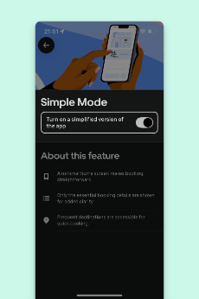
Uber can be a great transportation option for people who are blind or low vision. With the base Uber app, you can find and schedule rides and access the Uber Eats service to have food delivered to your door. But the app can be cumbersome and often filled with ads. Fortunately, the Uber Simple mode makes the app less cluttered and allows you to enlarge the text if needed. Under your account settings, go to the Accessibility tab, then find the Uber Simple tab. Once Uber Simple is turned on, the Home screen will only show you a space asking “Where To?” and an option to reserve a ride for later (for an extra fee). You can still find the Uber Eats service under the “Services” tab at the bottom of the screen, but it will not be affected by the Simple mode.
Your Amazon Echo, commonly known as Alexa, can be great for everything from checking the weather to locking your front door if you have connected it with a smart lock. Amazon recently rolled out a new feature called Alexa Plus, which makes its voice more friendly and conversational. Alexa Plus is free for all Amazon Prime users and is turned on automatically after the required update is downloaded. While some people may like the new chattiness of their Alexa, others may find it annoying and cumbersome. It can even make some Alexa functions no longer function. If you want to turn Alexa Plus off, simply say “Hey Alexa, turn off Alexa Plus.” It will ask you if you are sure you want to turn it off, and you can just answer “yes.” Turning it off will turn the feature off on all your devices. If you like, you can turn it back on by saying “Hey Alexa, turn on Alexa Plus,” but we do not recommend going back and forth much, as it can take some time for the setting to adjust on all your devices.
If you need more assistance with these two tech tips, or if you want to learn about other ways you can make your access technology work better for you, we strongly recommend you schedule an access technology training session at the Council, Contact us at [email protected], or fill out the Vision Services Requests form on our website to schedule an appointment.